
ScanEx is a tool in WinCan VX that is used to code scans brought in from either a Digisewer or a Panoramo camera.
- Open the Scan by double clicking on the Yellow WinCan Logo in the Scan Column.
•This will open the Scan Explorer tool
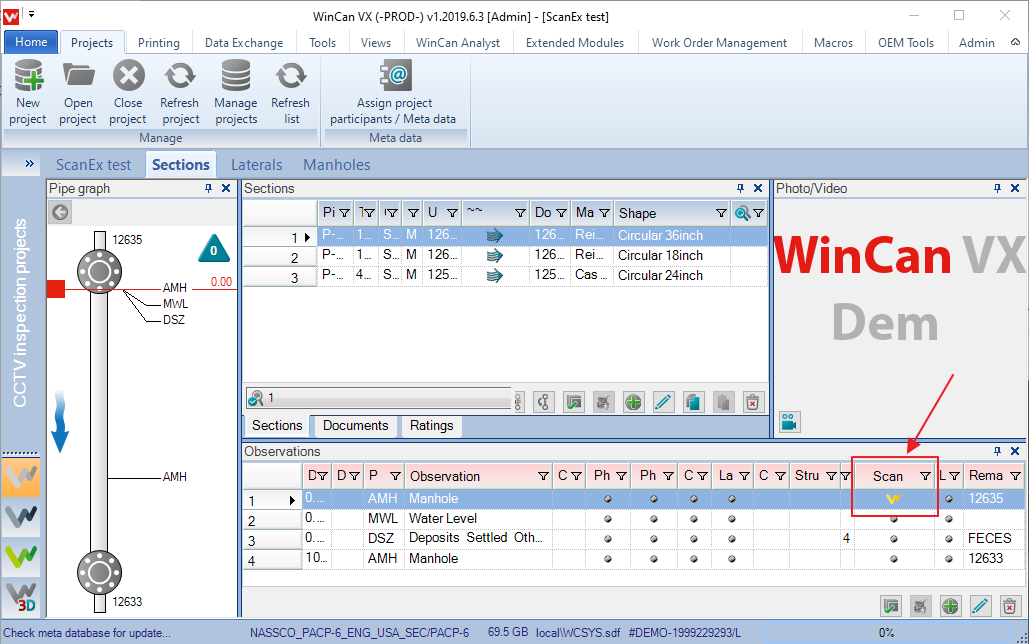
- By default, you typically will see the front view (Left hand side) and the Side Scan View (Right hand side)
•There are also the section view and side scan overview (tabs below the front view)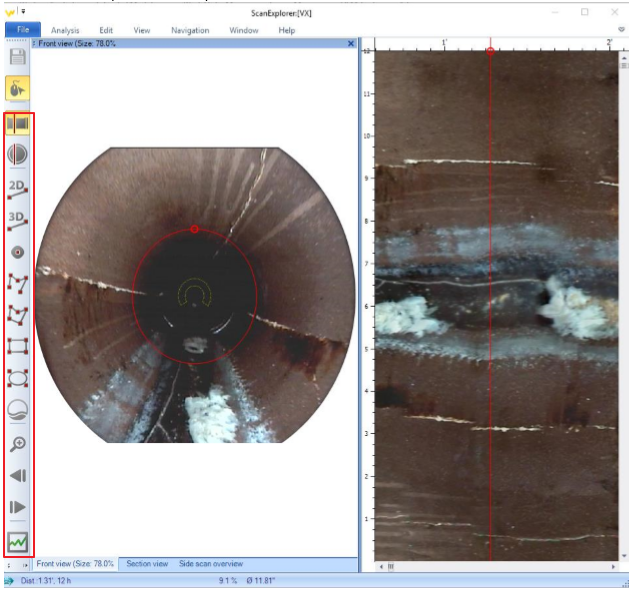
- There are also tool buttons along the far left of the screen and if you hover the mouse over an icon you will receive a tool tip of what it does (red box)
- Drawing Mode
•Unfolded view (Side scan)
• In this mode all graphics will be in the plane of the unfolded pipe surface
• You can choose between 2D or 3D measurements, Point, Polygon, Rectangle, or Ellipse
•Cross sectional (Front view)
• In this mode all graphics will be in the cross-sectional plane of the pipe
• You no longer have the 3D measurement tool but now have the water level
- Once you have selected the item you wish to use to mark your observation you will find a Graphics Properties menu. This is where you can make some modifications to the graphic used (color, marking type and width)
- From this menu you will want to make sure the “Link to WinCan” check box is checked. This forces WinCan VX to add and link an observation to WinCan VX. The next items allow auto pictures from the Side scan and front view as well as to have (or not have) the graphics in the photos.
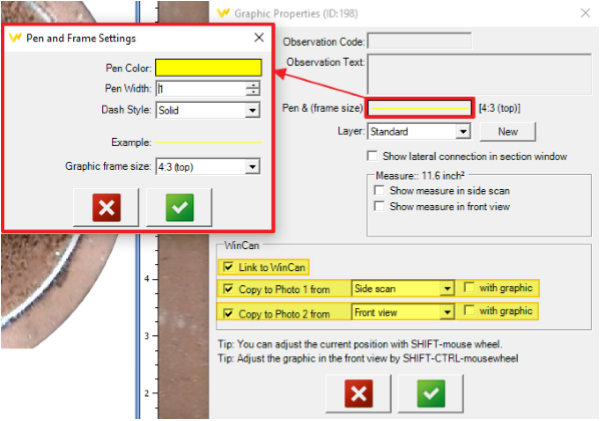
- Once you click the Green check here it will lock out Scan Ex (Turns all red) as not you must click back onto VX and enter the observation you marked. This process is repeated until all observations have been applied.
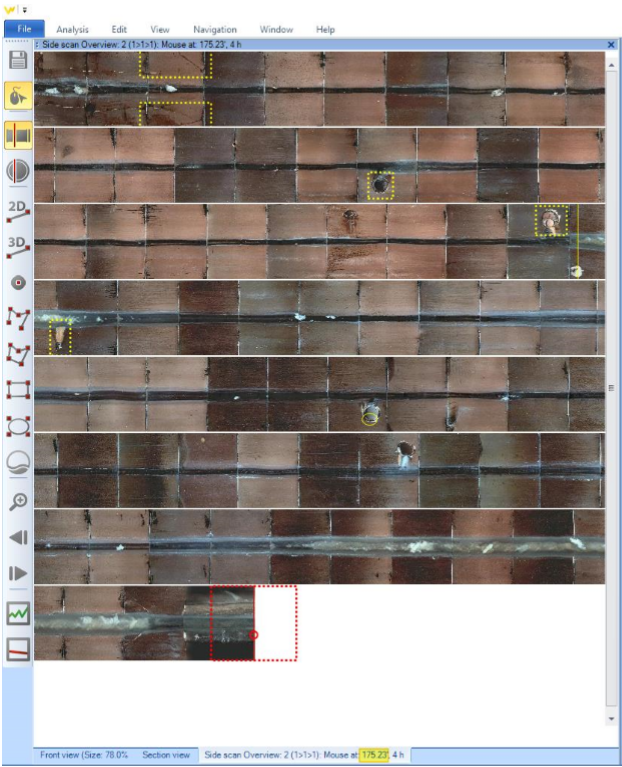
- One of the biggest advantages of ScanEx is the SideScan overview window. With this the operator coding can quickly see the pipe and know specific hot spots to check without needing to watch an entire video. The image shown below is with all 175 feet of pipe on the screen.
Comments
0 comments
Please sign in to leave a comment.