
To Calibrate Digisewer:
- Click on the red circle underneath the camera, next to the video feed on the right side.
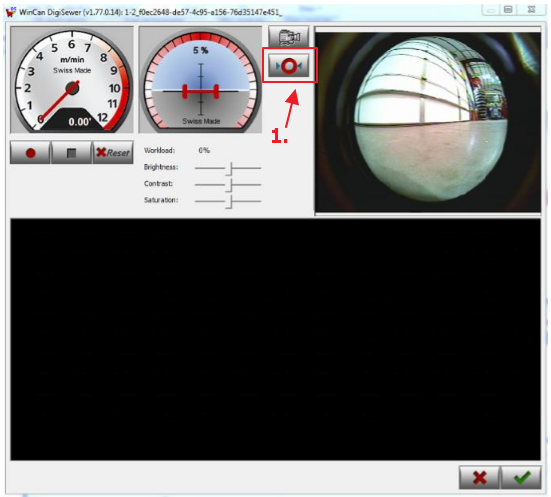
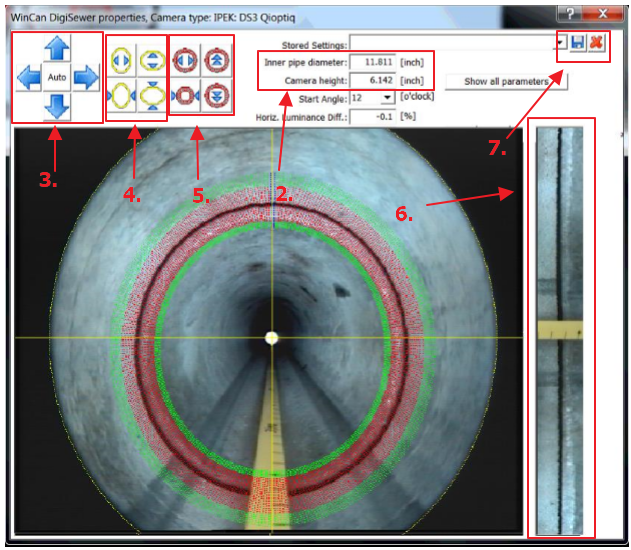
- Set the inner pipe diameter and the camera height. Diameter will be the size of the pipe, and camera height will be how high the camera is off the ground.
- The cross needs to be as centered on the pipe as possible. You can use the blue arrow buttons on the left side to move this.
- The buttons with the yellow circle on them will make the outer yellow circle wider/thinner, or taller/shorter
This circle needs to be on the outside black edge of the picture. - The buttons with the red circle on them will do the same to the red circle as the yellow circle, making it wider/thinner, or taller/shorter.
When using a joint to calibrate the red circle, this circle will need to be on top of the joint, so as a view of the joint can be seen on the right hand image. - You will need to continue to resize the circles until the joint on the right-hand side is in as straight of a line as possible.
- Once Digisewer is calibrated, you can save the settings under a specific name (e.g. 8 inch, 10 inch, 15 inch, etc.) to identify what pipe that calibration is intended to be used for.
Digisewer Use:
- Make sure your lights are at an appropriate brightness by using your controller. Once the lighting is correct you can use the contrast/saturation buttons in Digisewer to further adjust picture quality.
- To start scanning, click on the red dot underneath the speedometer. It will turn a brighter red and a sliver of an image will appear in the black space beneath. Now you can start driving your crawler.
- Once you are done you can click the stop button next to the record button, then click the check-mark in the bottom right. This will load the scan into VX.
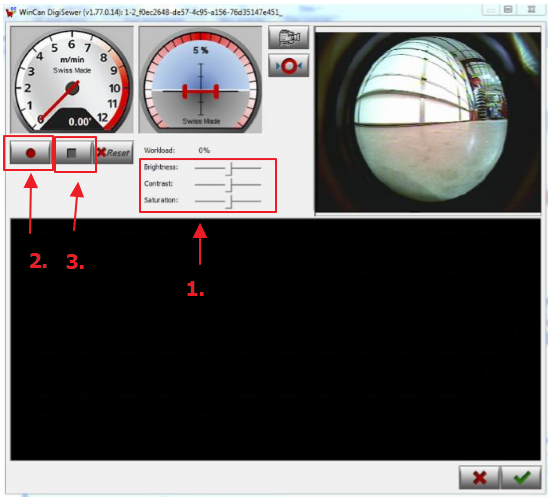
Be sure that you do not go above 6m/min on the speedometer or it will distort the image. For best image results, keep the speed between 3 and 6.
To learn how the post process of scans work (viewing and coding into WinCan) please refer to Coding with ScanEx
Comments
0 comments
Please sign in to leave a comment.